New 'What New' widget 🏠
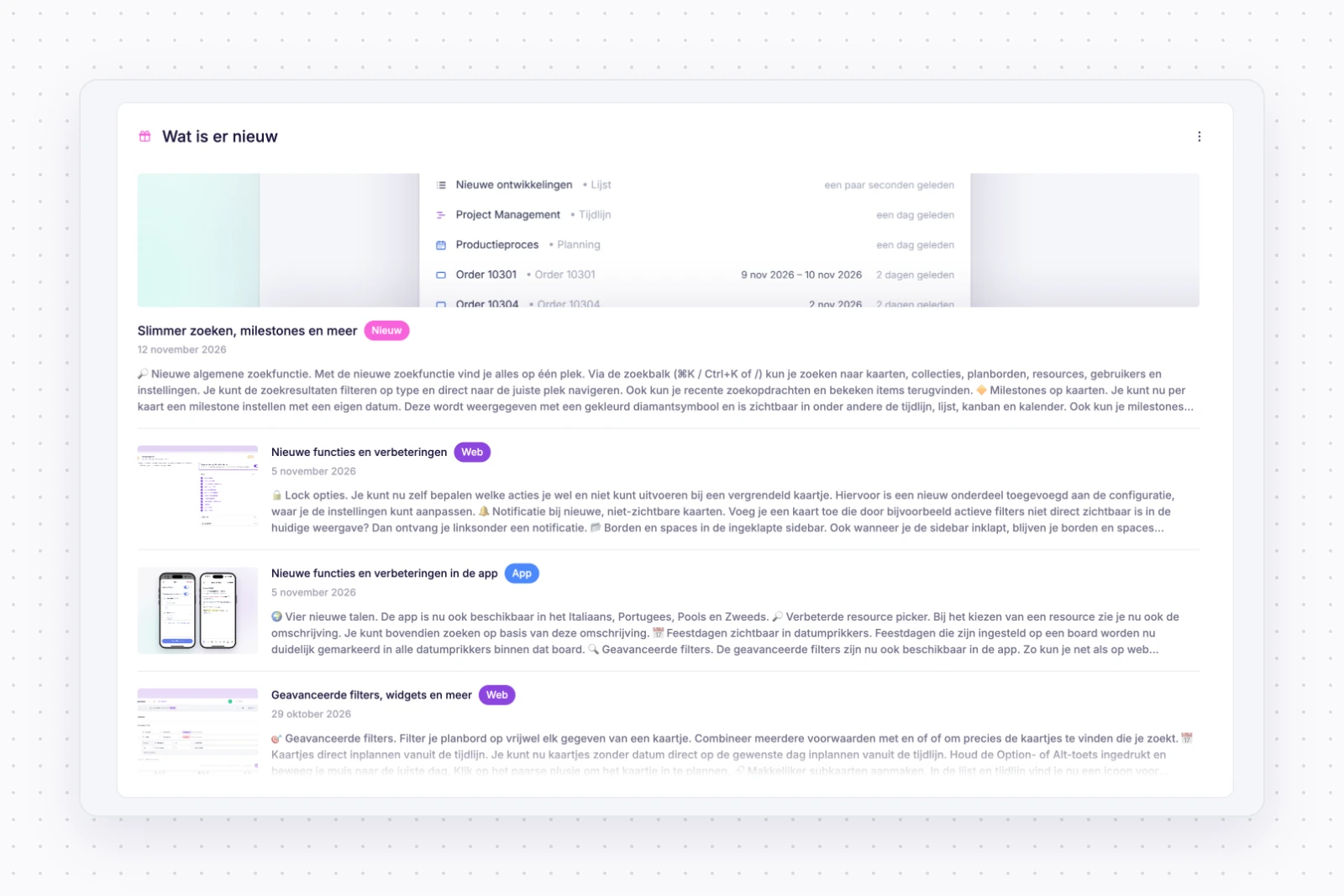
We're continually developing vPlan, regularly adding new features and improvements. Want to see what's new as it happens? The new changelog widget on Home lets you keep up with the latest updates from your own start page.
Find what you need faster 🔎
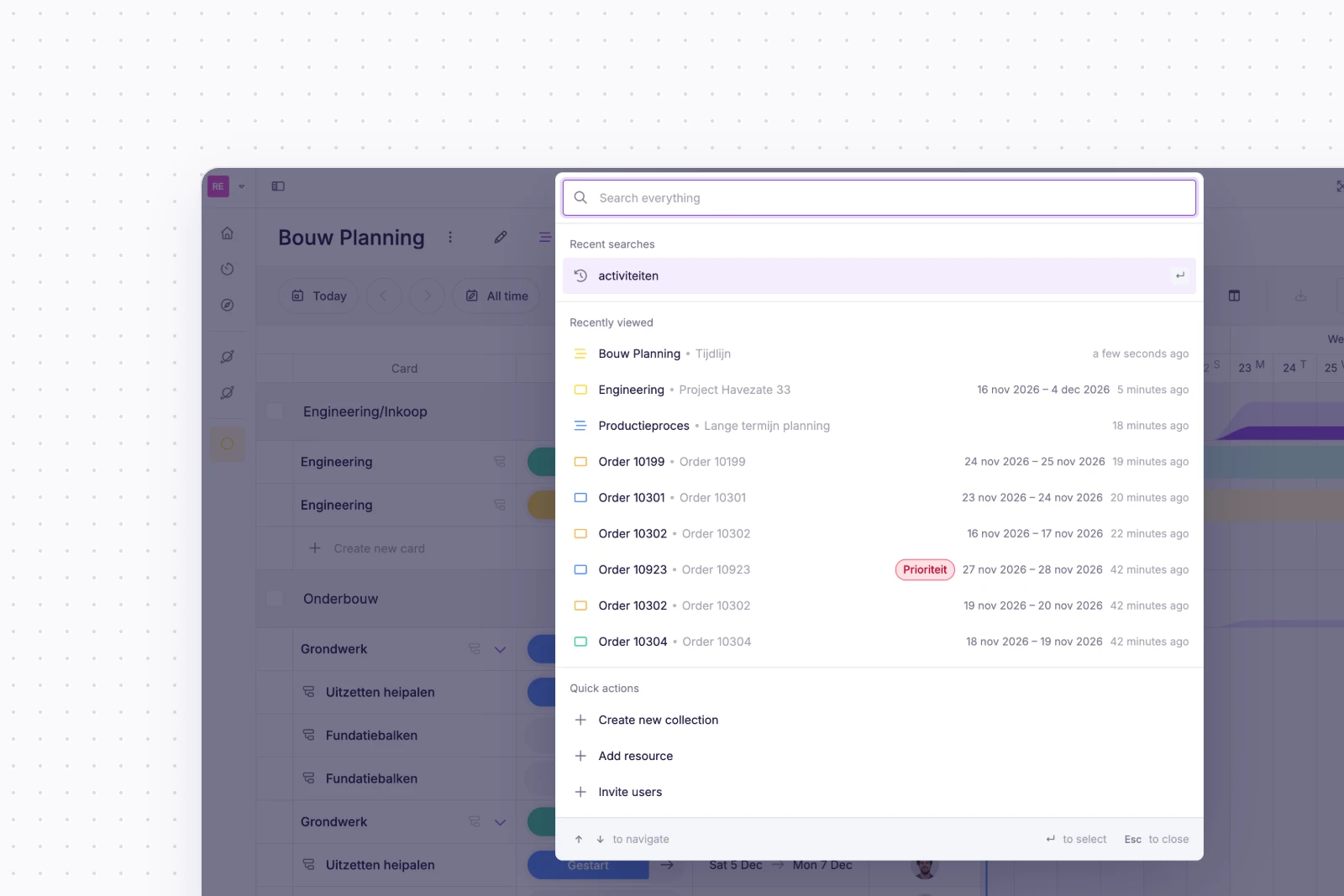
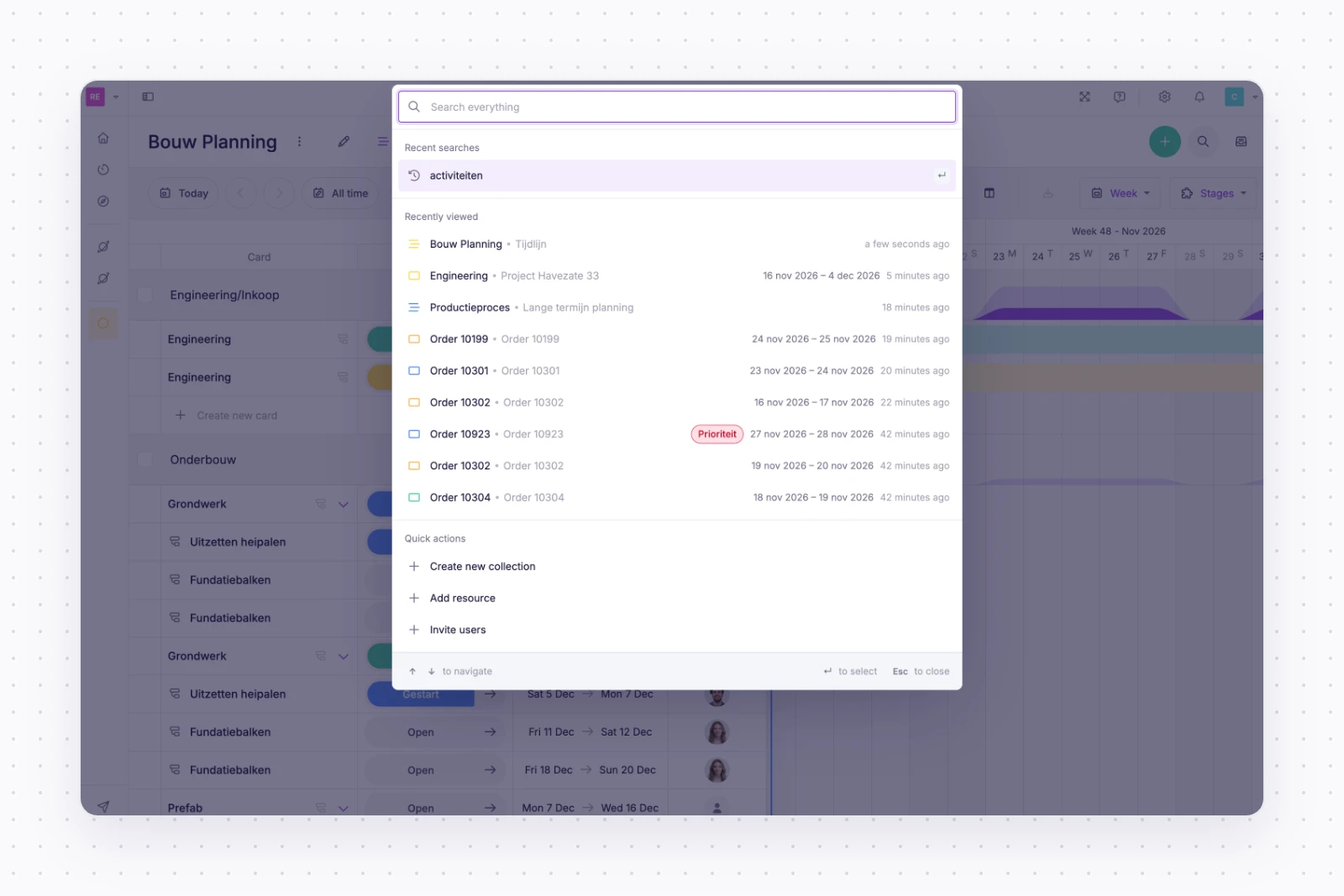
Looking for a card, a collection or a setting? With the new global search, you no longer need to navigate to the right part of vPlan first. Use the search bar at the top to find cards, collections, planning boards, resources, users, settings and more, all in one place.
Open search with ⌘K, Ctrl+K or /. Enter your search term and narrow the results by type if needed. Click a result to go straight to the right place and carry on working.
You'll also find your recent searches and recently viewed items here. Handy when you want to return to a project you opened earlier. The new search replaces the 'Recently viewed' widget on Home.
Keep track of important steps with milestones 💎
A project has an end date, but there are often dates along the way that you want to keep track of. WIth milestones, you can now give a card its own target date. This allows you to specify when an important step needs to be completed to meet the final delivery date.
Think of an production order where the materials need to arrive well before delivery. Set a milestone on the 'Purchasing' card to record that date. Or a construction project due for completion in July, where the roof needs to be watertight before winter. For annual accounts, you can specify when the clients needs to submit their documents.
You set the milestone on the card. It appears as a coloured diamond symbol in the timeline, list, card sidebar, Kanban and calendar, among other places. You can filter by milestones and include them in your export.
Want to keep track of your cards milestones from Home? Then add the new Milestones widget to your Home.
Decide what can be done with locked cards 🔒
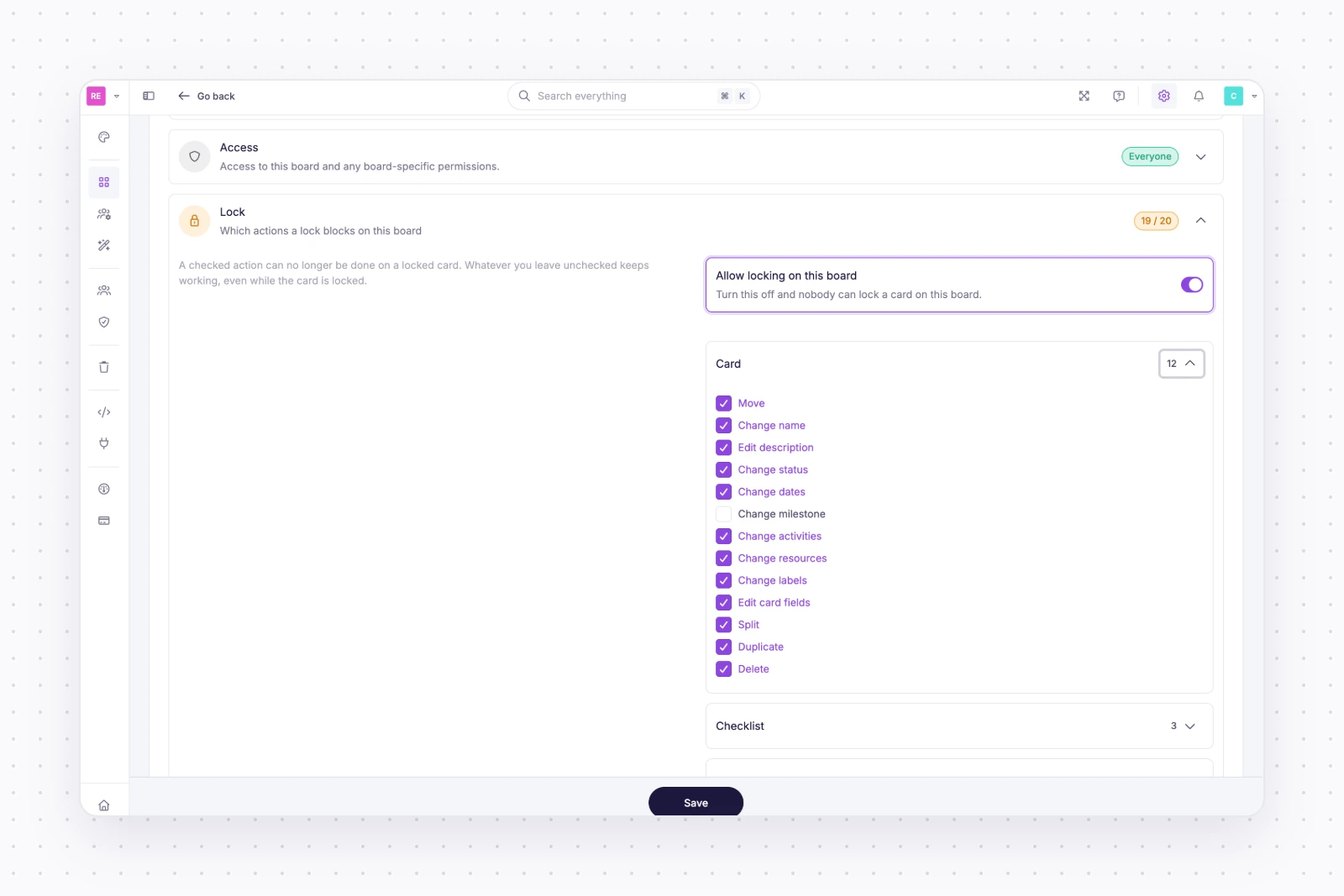
Locking a card helps prevent changes to your planning. However, sometimes you may still want to allow certain actions. With the new locking options, you can decide which actions are and aren't permitted.
You can configure this in a new section of the settings. For example, you can allow dates to be changed while keeping other actions blocked. This gives you more control over how card locking works for your team.
Select multiple options in one custom field 🗂️
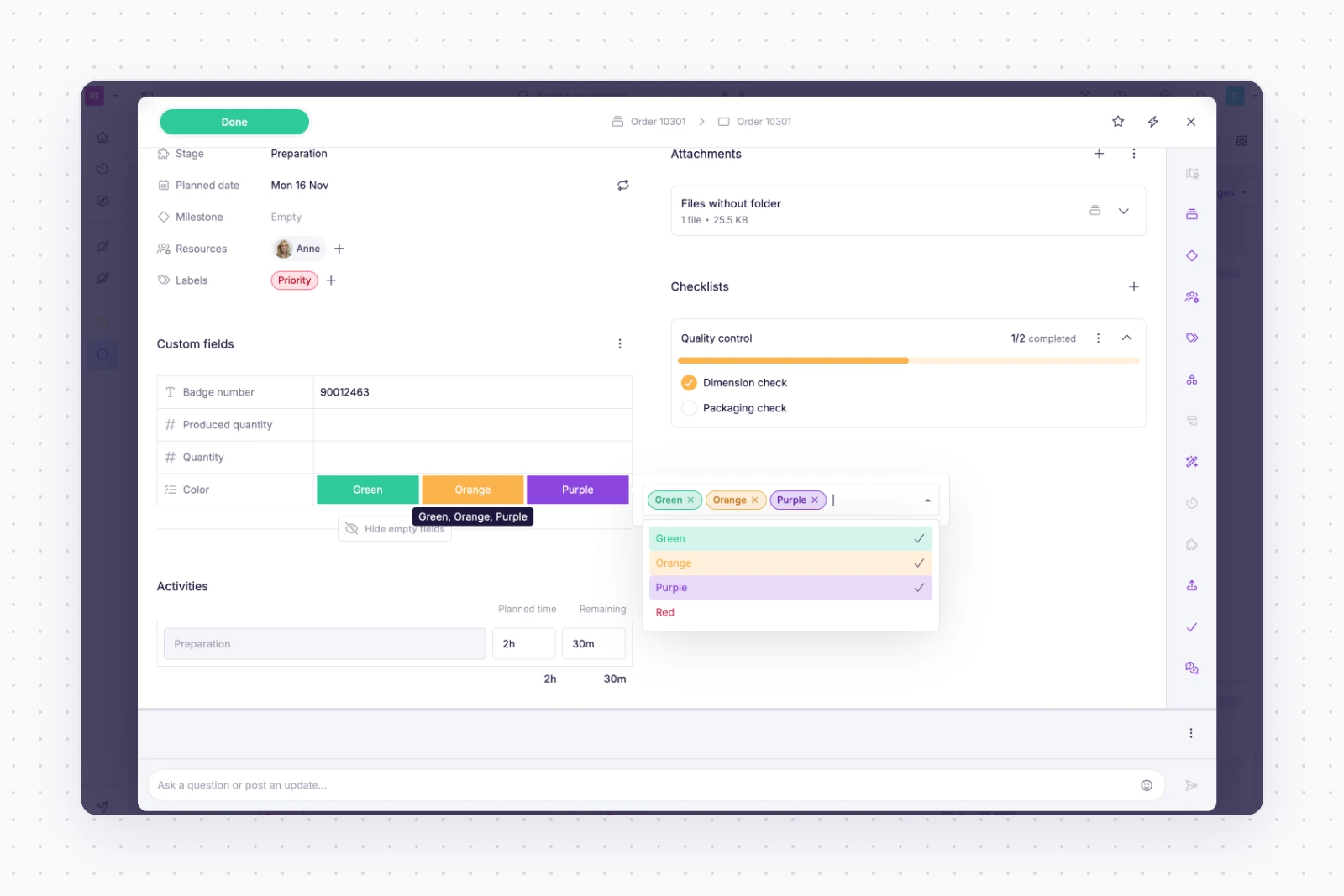
Sometimes more than one option applies to a card or collection. Think of a job that involves several types of work. With the new Multiple choice custom field, you can select several options from the same list.
This keeps the information together, without needing a separate field for each choice.
Filter activities faster 📊
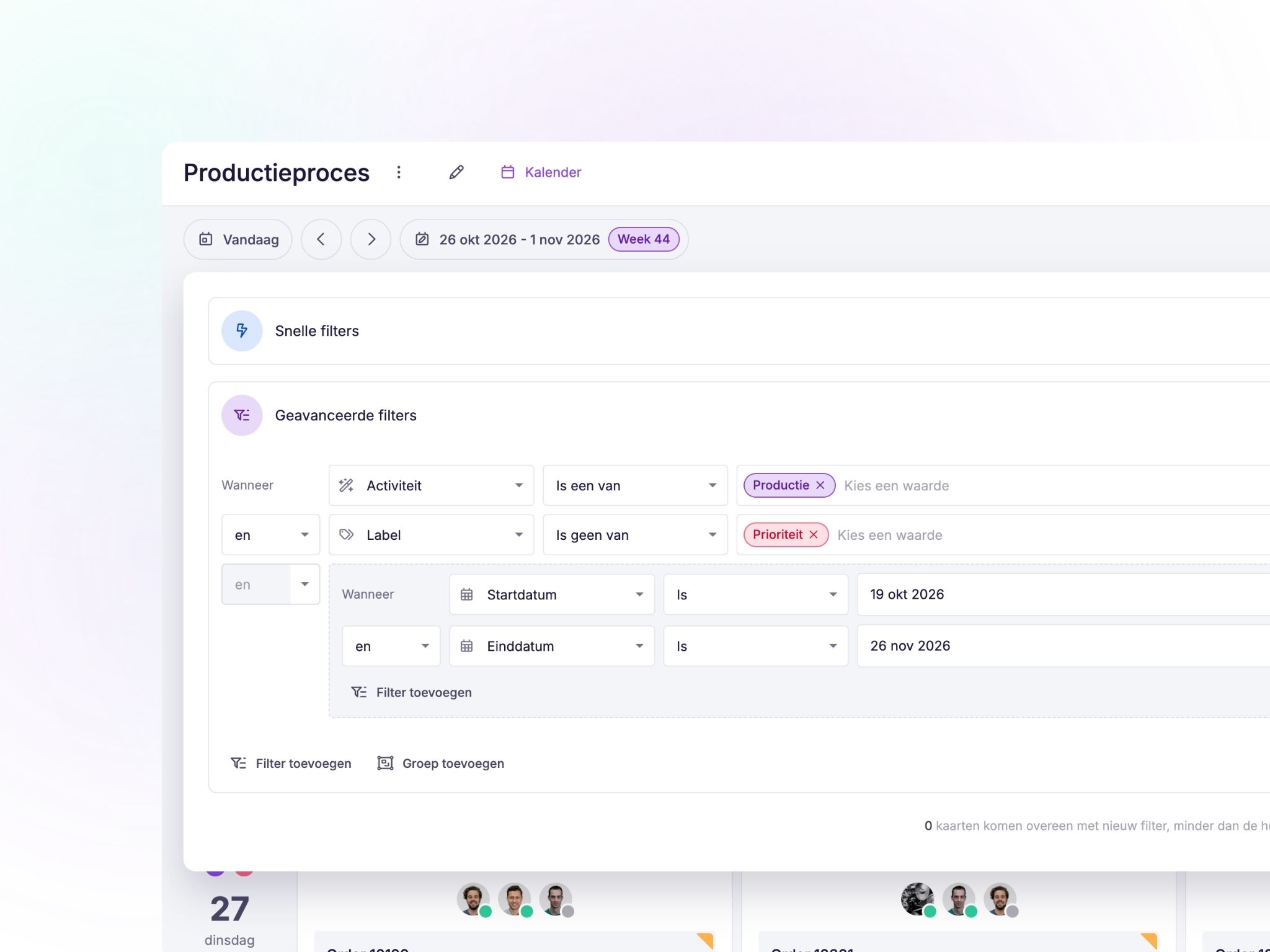
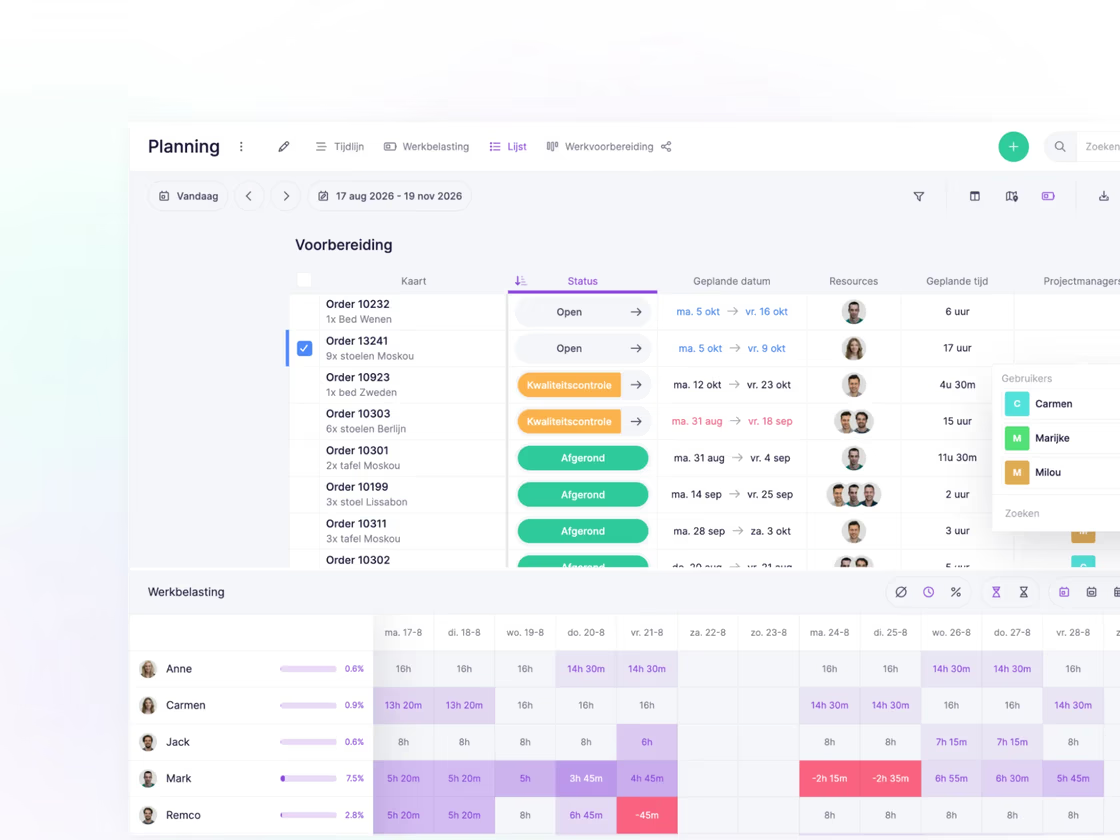
Want to see only the work associated with a specific activity? You can now do this using the quick filter. For example, you can display only assembly work.

Reply straight from an inbox notification 📥
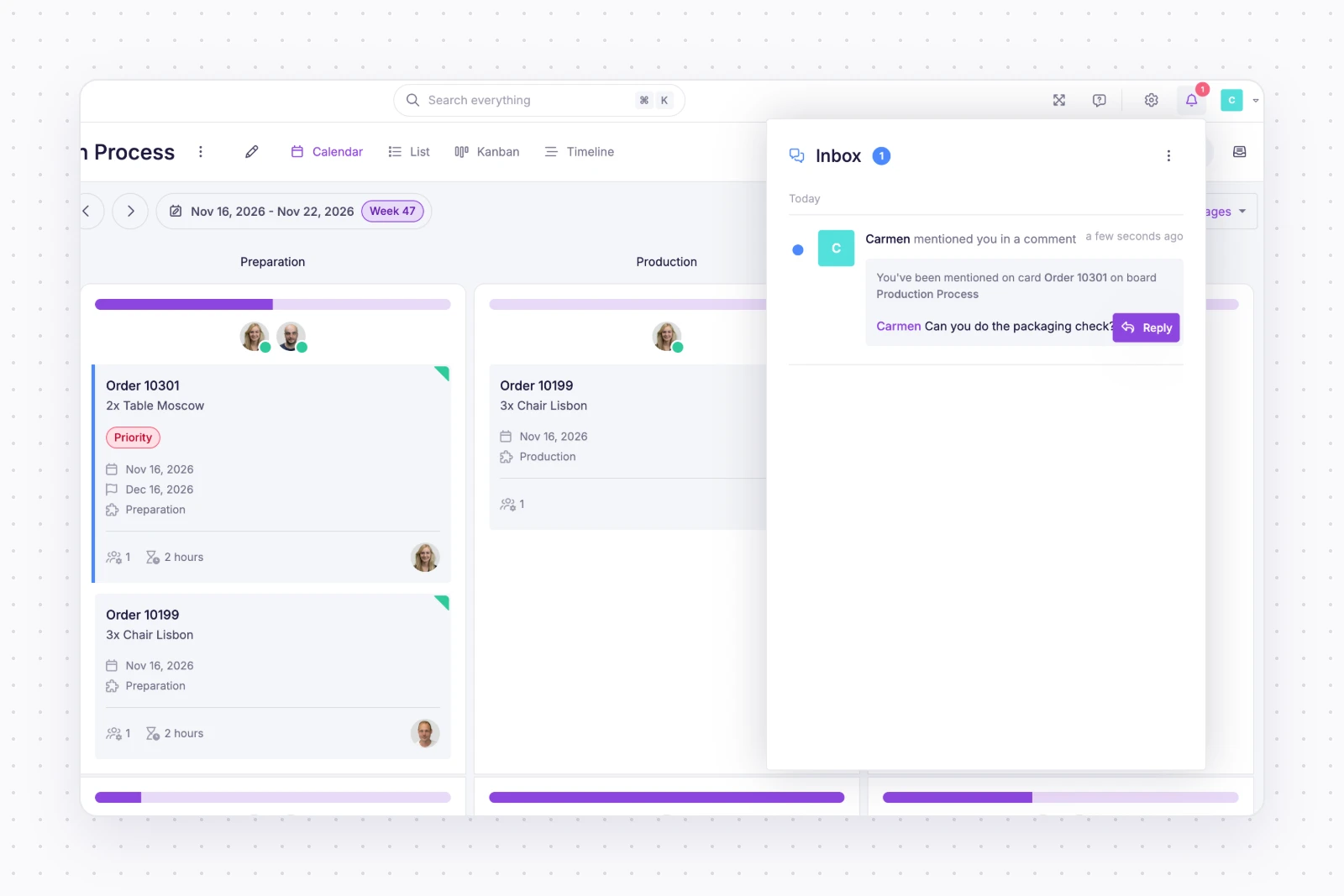
When a colleague asks a question or a new message arrives, a notification appears. You can reply directly from it or mark the message as read.
This lets you pick up a question while working on your planning. Prefer not to receive these notifications? You can turn them off in the inbox menu.
Even more useful improvements
These improvements also make everyday work easier:
- Configure card locking: choose which actions remain available on a locked card. For example, you can allow date changes if that suits the way you work.
- Navigate faster: even with the sidebar collapsed, you can access your boards and spaces by hovering over it.
- Know when a card is hidden: if you add a card that isn't visible because of active filters, you'll receive a notification.
- Find collections: you can now search for completed collections using the green plus button.
- Drag more smoothly: automatic scrolling at the edge of the timeline is now smoother.
Have you tried these handy tips?
Does a card still need a date? Use the Alt key (Option on Mac) to add one directly from the timeline. You can also create subcards straight from the list and timeline, without opening the card first. Handy when you want to plan work quickly or break it down into smaller tasks.
Read more about these tips in our previous release blog.
Try it yourself
Find your next card using global search, set a milestone or try the new multiple-choice field. Have an idea or a request for a future update? Let us know via our community.
Try it in your own vPlan
Every new feature is in the free trial.