Version conflicts and synchronization issues
Imagine this: two colleagues open the same Excel file at the same time. They both edit data, save their work, and now what? Version conflict! One person’s changes overwrite the other’s, or worse, they disappear completely. This often happens because Excel lacks a proper way to sync changes in real time. As a result, you end up with duplicate or even conflicting information. Chaos guaranteed.
Limited real-time collaboration
Collaboration on a project means everyone needs to stay up to date with the latest changes. But in Excel, you don’t immediately see what someone else is doing, especially in the desktop version. If someone makes changes, you only notice when you reopen the file or try to save your own changes. This leads to misunderstandings and delays, particularly when you need to make quick decisions.
Error-prone manual data entry
Everyone makes mistakes. Excel is no exception. You type the wrong number, forget a formula, or copy something incorrectly. When multiple people are working on the same file, the risk of errors increases. A small typo can lead to incorrect analyses or decisions, with major consequences.
Insufficient access control
Excel offers limited options for managing access. Anyone who can open the file can also edit everything. This means there’s no control over who is making changes, which can lead to unwanted modifications. Especially when dealing with sensitive information, you want to avoid these risks.
- Lack
of communication and documentation
Excel doesn’t have built-in features for communicating with your team about the work you’re doing. You have to rely on external tools like email or chat. Excel also doesn’t track who made what changes. Without documentation on changes, it’s hard to trace who is responsible for specific edits. This often leads to miscommunication and frustration.
Scalability and performance limitations
As your Excel file grows, for example with large amounts of data or complex formulas, you’ll start facing performance issues. Files can become slower or even crash, especially when multiple people are working at the same time. This makes it difficult to collaborate efficiently on larger projects.
The solution: Switching to planning software
If your team wants to work more efficiently, it’s time to look beyond Excel. Planning software like vPlan is specifically designed for teams that want better collaboration and streamlined project management.
Clear planning
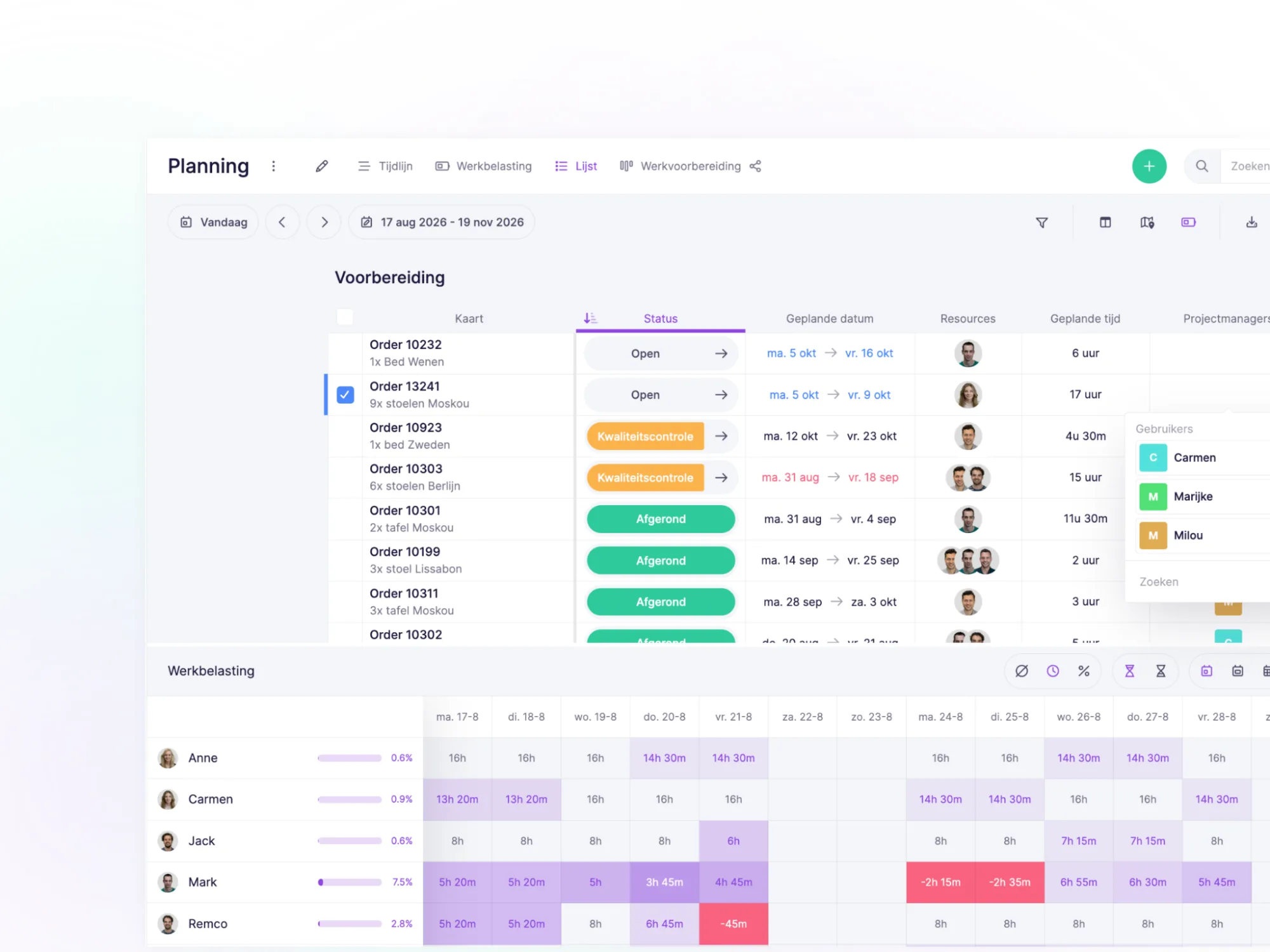
With vPlan, you get a visual overview of your schedule and gain control over capacity and deadlines. By scheduling your team based on available capacity, you distribute the work fairly and realistically.
Real-time
collaboration without conflicts
With vPlan, you always work in the most up-to-date version of the plan. Multiple users can work on the same project simultaneously without version conflicts. Changes are synced instantly, ensuring everyone is always on the same page.
Try it in your own vPlan
Every new feature is in the free trial.